
I’ve been considering switching to Penpot for a long time. In fact, I’ve made a few unsuccessful attempts in the past. But for some reason, this time it really clicked, and I find myself making time every day to dive into the app. So, I wanted to share my journey in case it might be useful for anyone else going through the same process or still on the fence.
Why Penpot?
Is there anything wrong with Figma? Well, this isn’t about what’s wrong with Figma (it could be, but it’s not going to be). This is about all the things Penpot does so well.
Open-sourceness
Design and open-source are not concepts you often find together (if you want to argue and list a bunch of initiatives in the comments, go ahead—but we have to accept things as they are). So, anything built on this premise is something I have to try.
Penpot has brought the perks of open source conventionally enjoyed by developers to designers.
I love it because it’s true.
Fálase galego
(Galician spoken here)
Community involvement means the software can be in any language—even the most beautiful and less common ones 🩵.
I haven’t had time to learn how to contribute by translating Penpot into Galician, but it’s definitely something I want to explore.

Self-hosting
As someone who cares about privacy and security self-hosting is very appealing. That said, it can sound intimidating for non-developers (like me).
Tbh, I needed a few guides and a little help from Mistral. No tutorial I found explains it for absolute beginners, but it’s not difficult once you grasp the basics.
I installed it locally because I don’t want to deal with server management, and I’m a solo designer. I’ll upload projects to my regular Penpot account when I need to share them with clients or developers.
Values and good vibes
As I’ve already said, this post isn’t about what’s wrong with Figma, and I don’t want to dwell on that. But values matter, and Penpot (and the team behind it) aligns much more closely with mine than Figma does.
If you know, you know.
Adapting WordPress Block Themes Design to Penpot
Using client projects to get familiar with a new tool felt too complicated. And practicing with random templates or blank projects didn’t seem realistic or interesting. So, I used one of my side projects: WordPress Block Themes design.
On the one hand, it gives me real material to work with without the pressure of deadlines.
On the other hand, designing WordPress Block Themes requires a design system that is particularly well-suited for testing Penpot’s features. There isn’t much information about designing WordPress Block Themes, so this could be a win-win for some.
Discovering Penpot
As I’ve already said, this isn’t a complete guide to switching to Penpot, but rather my journey discovering how it works and how it differs from Figma. These are the things that have caught my attention so far.
Change to a Full Front-End Mindset
This might sound obvious considering their motto—Design as Code—or the software’s own definition: Penpot is the web-based, open-source design tool that bridges the gap between designers and developers. But many other tools claim to improve the workflow between designers and developers—yeah, Figma included.
I’m really grateful I learned front-end at some point. I understood a long time ago that structuring my designs as closely as possible to how they’d be implemented in code would make things easier and improve the results.
In Figma, I had to mimic many things and figure them out on my own. But Penpot is built with a front-end approach.
I’m still learning how Penpot’s UI translates some CSS logic, but it feels pretty natural if you’re familiar with code.
You don’t have to know front-end coding to use Penpot. But it will greatly improve the experience if you do.
Font Weight
Penpot allows you to define font weight using numbers (300, 400, 500, 600…) instead of names (Light, Regular, SemiBold, Bold…).
That’s it.
I needed this sooo much.
Typography Catalog
This isn’t a problem for me, but I know it could be for many: Penpot does not sync with your computer’s typography catalog. It includes Google Fonts by default, and you have to add any others (including system fonts) one by one.
Bye, Bye Variables. Hello Tokens!
Figma has clearly been pushing for that unified workflow between developers and designers that we all long for. But, in my opinion, Figma is weighed down by its legacy infrastructure, and new features are struggling to find their place in a system originally designed with an image-editing mindset.
However, Penpot shaped the app with a front-end mindset from the beginning. And this, my friends, is a whole different story.
Penpot not only allows you to structure your design using tokens, but you can also organize your tokens into themes. This makes it much easier to design projects like WordPress themes or any others that involve style changes (such as dark modes or accessibility variations).
I’m also thinking about creating themes for design versions for clients. This way, I can compare different color palettes or typography pairings without losing previous proposals or having to duplicate all the pages.
I’ve had just one week to learn how the token system works and apply it to a real-world project, and I couldn’t be happier.
Assets vs. Tokens
Just as Figma has styles and variables, Penpot also has two different ways of doing something that may seem confusingly similar: assets and tokens.
In Figma, assets are essentially visual elements that you use repeatedly throughout your design, such as icons, logos, or buttons. This can also cause some confusion with components, but I won’t go into that here.
In Penpot, assets can also be colors or typographies. When you import a Figma file, Figma styles are “translated” as Penpot assets.
After some investigation, my conclusion is that Penpot assets are somewhat of a holdover from initial versions, which were more intended to resemble Figma. They were left in place in case they might still be useful to someone when the token system came along.
I decided to pretend that color and typography assets don’t exist, and I use tokens instead to make my life easier. I use assets as a more accessible way to find components.
If someone has a suggestion for how color and typography assets could be useful, please let me know.
Tokens and Editing Texts
Nothing is perfect, and I finally ran into a snag with tokens. Since you can’t apply tokens to text editing, you have to get creative if your design includes highlighted text. There are probably other issues like this, but I haven’t come across them yet in the project I’m testing.
You can see my particular issue and the solution Laura Kalbag helped me build here.
Flatten Text
Confession time: I’ve been using Figma as my vector editing and design software for quite some time now. I create logos, icons, and edit all kinds of SVGs with it. All the graphics on this website were created or edited with Figma. So, for me, the ability to flatten text is essential when designing.
In Penpot, you need a plugin to do this 🥲. I have to admit that one of my previous attempts at using Penpot failed because of this—and because I didn’t make enough time to explore solutions, to be honest.
Installing Plugins Locally
Solving the flatten text issue taught me how plugin installation works when you run Penpot locally. It’s not a difficult process, but it took me a while to figure it out. I hope this might be a shortcut for someone else.
When visiting the plugins repository, instead of clicking “Install,” you have to enter the plugin page, click on “Copy install URL,” and paste it into the plugins field.
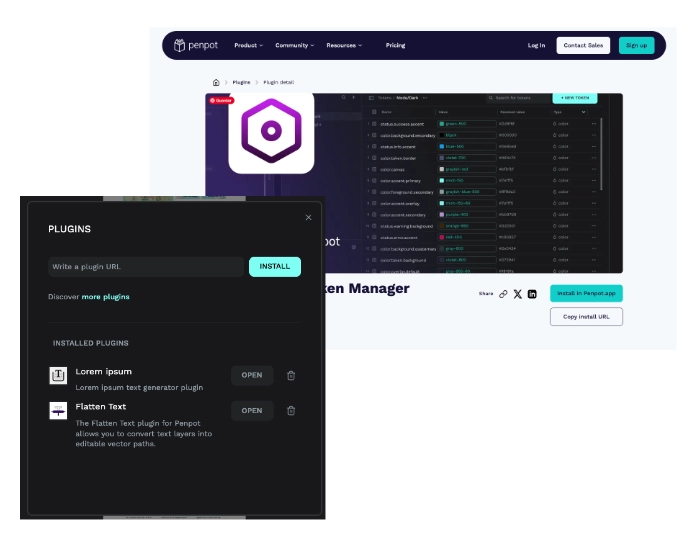
You also have to keep in mind that Libraries & Templates must be manually downloaded and imported when running Penpot locally.
It’s obvious once you know, but not so obvious when you’re used to Figma—and, in general, to depending on third-party servers.
I think this is the beginning of a beautiful friendship
I was more than willing to adapt my design process to the software because of my values and shared philosophy. But I didn’t expect to find such fundamental solutions in just one week.
This might not apply to every designer. I’ve spent a lot of time shaping my design system and process to make things smoother for development fellows. So, in my case, Penpot brings convenience to something I was already trying to do manually.
I’m still in the process, but I’m confident it will end up being a permanent switch. Let’s see what happens and if that turns out to be the case.
And now, What?
I’m sorry to say that, as a beginner, I probably don’t have all the answers to your questions. But I’d really love to hear about other people’s experiences making this switch.
If you have any questions, we can always try to find the answers together. You can drop them in the comments section of this post or check out the Penpot community—the people there are really nice.
See you in the next updates on my experience migrating my WordPress block theme design project to Penpot.
Leave a Reply